
YourPhone.exe in Windows 10: What It Is and How to Fix High CPU Usage
By Tech Entertainer Team · 2026-08-12
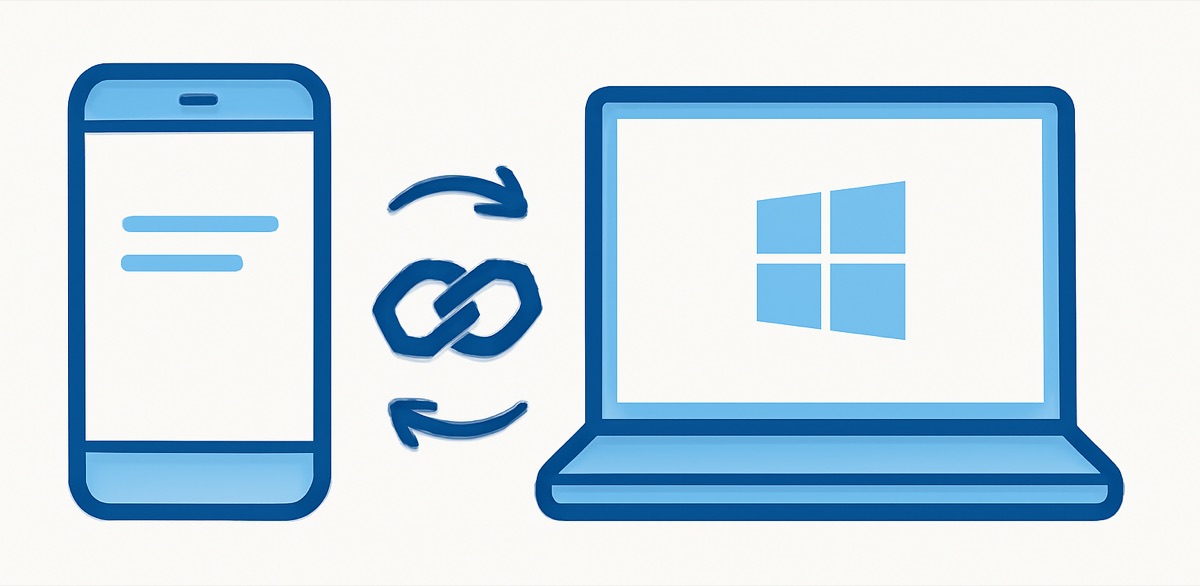
YourPhone.exe showing up in Task Manager using a surprising amount of CPU or memory is one of the more common Windows 10 complaints, and it usually gets mistaken for malware because of the vague name. It's not malware. It's Microsoft's own Phone Link feature, and it can genuinely misbehave.
I've dealt with this on a handful of machines where it sat at 15-20% CPU indefinitely for no clear reason, well beyond what syncing notifications should take.
What is YourPhone.exe?
It's the background process behind Phone Link (previously called Your Phone), Microsoft's tool for connecting an Android phone to a Windows PC. It handles notification syncing, message mirroring, photo access, and in some setups, phone screen mirroring directly on your PC.
It's a legitimate Microsoft process, not third-party software and not malware, even though the generic-sounding name makes people search for it expecting the worst.
Why is YourPhone.exe using so much CPU?
Usually a stuck sync process or a corrupted connection to your phone that keeps retrying in the background without succeeding. This is more common after a Windows update or after reconnecting a phone that was disconnected for a while.
To check what's actually happening:
- Open Task Manager (Ctrl + Shift + Esc).
- Find YourPhone.exe under Processes and note its CPU and memory usage.
- If it's consistently high (above 5-10% CPU when you're not actively using Phone Link), something is stuck rather than working normally.
How do I fix high CPU usage from YourPhone.exe?
- Open the Phone Link app directly (search "Phone Link" in the Start Menu).
- Check whether it's actually connected to your phone or stuck trying to reconnect. A stuck reconnection attempt is the most common cause of ongoing high CPU use.
- If stuck, disconnect and reconnect your phone from within the app rather than waiting for it to resolve on its own.
- If reconnecting doesn't help, restart your PC; this clears most stuck background processes cleanly.
If the problem keeps coming back, disabling background permissions (below) is a more permanent fix than repeatedly reconnecting.
How do I stop YourPhone.exe from running in the background?
- Open Windows Settings, then Apps, then Installed apps (or Apps & features on older Windows 10 versions).
- Find "Phone Link" in the list and click the three-dot menu next to it, then Advanced options.
- Under Background apps permissions, change it from "Always" to "Never" or "Power optimized."
- Close and reopen the app manually whenever you actually want to use it.
This keeps Phone Link available without letting it run constantly in the background consuming resources you're not actively using.
Can I uninstall YourPhone.exe completely?
Yes, if you don't use Phone Link at all. Go to Settings, then Apps, then Installed apps, find Phone Link, and click Uninstall.
Keep in mind this removes notification syncing and message mirroring from your PC entirely. If you occasionally use it (even rarely), disabling background permissions rather than fully uninstalling keeps the option available without the constant resource usage.
Why does YourPhone.exe keep restarting even after I end the task?
Ending the process in Task Manager only stops it temporarily. Windows treats Phone Link as a linked background service tied to your Microsoft account and phone connection, so it restarts on its own, either immediately or the next time you sign in.
To actually stop it from restarting, use the background permissions setting covered above, or uninstall the app entirely. Task Manager's "End task" is a temporary measure, not a permanent fix, for this particular process.
Does YourPhone.exe affect battery life on a laptop?
Yes, if it's stuck in a high-CPU state, since sustained CPU usage drains battery faster regardless of which process is causing it. Under normal operation (just syncing notifications occasionally), the impact on battery life is minimal.
If you've noticed shorter battery life alongside high YourPhone.exe CPU usage in Task Manager, fixing the stuck connection (or disabling background permissions) addresses both problems at once, since they share the same root cause.
Why does YourPhone.exe show multiple entries in Task Manager?
Phone Link runs several sub-processes for different features (notifications, messages, photo sync, screen mirroring), and Windows sometimes lists these as separate YourPhone.exe entries rather than grouping them into one. This is normal and doesn't mean the app is duplicated or broken.
If you're checking total resource usage, add up all the YourPhone.exe entries rather than judging by just one, since the combined total is what actually reflects the app's real impact on your system.
Does YourPhone.exe work with iPhone, or only Android?
Phone Link's full feature set (message mirroring, notification sync, photo access) works with Android phones. iPhone support through Phone Link is much more limited, covering basic calls and texts on some Windows versions but not the deeper integration Android gets.
If you have an iPhone and see YourPhone.exe using resources despite limited functionality, this is a common case for using the background permissions fix or uninstalling it entirely, since you likely aren't getting much practical benefit from it running constantly.
Why did YourPhone.exe start using resources again after a Windows update?
Windows updates sometimes reset app permissions, including the background permission setting you may have already changed. This is a known pattern with Windows feature updates specifically, less so with smaller security patches.
After any major Windows update, it's worth rechecking Settings, then Apps, then Phone Link's advanced options, to confirm your background permission setting held, rather than assuming a one-time fix stays permanent forever.
Is there a way to check exactly what YourPhone.exe is doing when CPU usage spikes?
Open Task Manager, click More details if you're in the compact view, then click the Details tab and find YourPhone.exe there for more granular information than the Processes tab shows, including its process ID.
For most people this level of detail isn't necessary; the fixes above (reconnect, adjust permissions, restart) resolve the vast majority of cases without needing to dig into detailed process diagnostics.
A quick checklist for YourPhone.exe problems
- Confirm it's genuinely Microsoft's Phone Link process in Task Manager, not a similarly-named fake.
- Reconnect your phone from within the Phone Link app if CPU usage stays high.
- Set background app permissions to "Never" or "Power optimized" for a lasting fix.
- Uninstall entirely through Settings, then Apps, if you don't use phone-PC linking at all.
- Don't rely on Task Manager's "End task"; it restarts on its own without a permissions change.
YourPhone.exe is legitimate Microsoft software, not something to worry about from a security standpoint. When it misbehaves, it's almost always a stuck connection that a reconnect or a permissions change fixes.
Related Guides
Frequently Asked Questions
Is YourPhone.exe safe, or is it malware?
It's a genuine Microsoft process, part of the Phone Link (formerly Your Phone) app that connects your Android phone to Windows. It's safe, though it can misbehave and use excessive CPU or memory in some cases.
Can I disable YourPhone.exe without uninstalling the app?
Yes. Turn off background permissions for the Phone Link app in Windows Settings, under Apps, then the app's individual settings. This stops it running constantly while keeping the app available when you open it manually.
Will disabling YourPhone.exe stop my phone notifications from showing on my PC?
Yes, if you fully disable or uninstall it. If you only restrict its background permissions, some features (like live notifications) may become less reliable, but basic functionality still works when you open the app directly.
Why does YourPhone.exe keep restarting even after I end the task?
Windows treats it as a background service tied to your Microsoft account and phone-link setup, so ending the process in Task Manager doesn't stop it from launching again. You need to disable it through Settings or the Phone Link app itself, not Task Manager.