
macOS Tahoe Finder Error -51 on a Samsung T7 or T9 SSD: How to Fix It
By Tech Entertainer Team · 2026-08-29
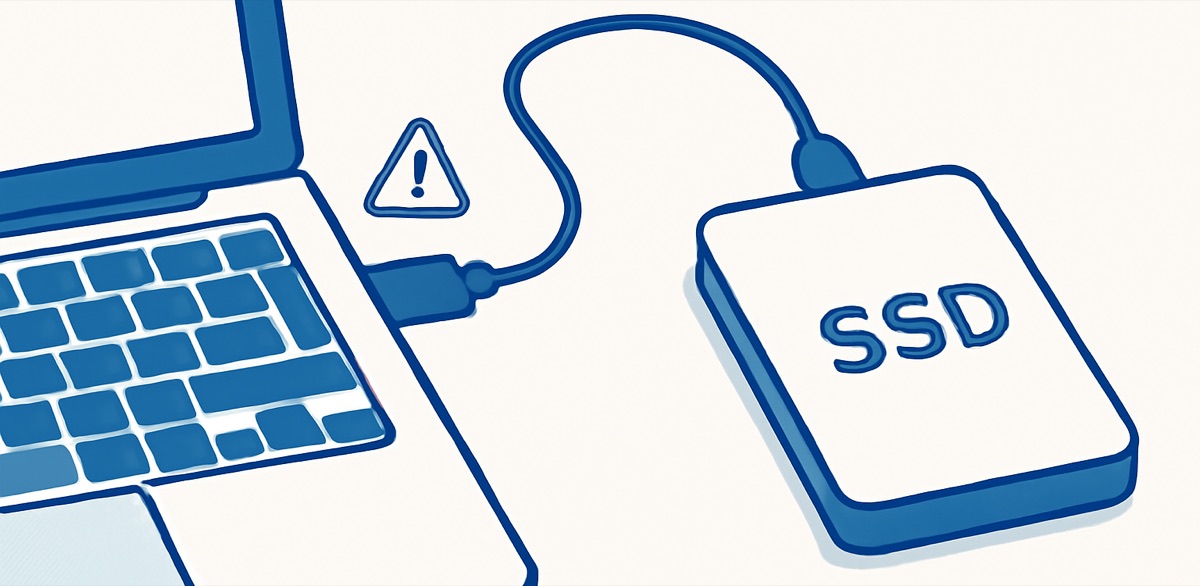
You plug in your Samsung T7 or T9, start copying a folder of video files or a Time Machine backup, and partway through, Finder throws an error dialog reading "The operation can't be completed. Error code -51" or the transfer stalls outright before you get an error at all. You unplug and replug the drive, try again, and it happens at a different point in the copy. This is a known macOS Tahoe issue, and it has nothing to do with your SSD failing.
Why Does macOS Tahoe Show Finder Error -51 on External SSDs?
The cause is Google's Android File Transfer Agent, a background process installed alongside the Android File Transfer app. On macOS Tahoe, this agent attaches itself as a USB user client to external storage drives, including Samsung T7, T7 Shield, and T9 SSDs, even though those drives have nothing to do with Android phones.
This extra USB client competes with Finder for access to the drive during large copy jobs. Multi-gigabyte transfers are the most likely to trigger it, since they hold the connection open long enough for the conflict to surface. Reports of this exact issue on Samsung T7, T9, and some Lexar portable SSDs started showing up on the MacRumors forums shortly after Tahoe rolled out, and the pattern matched across different Mac models and different SSD firmware versions, which pointed away from a hardware problem and toward something running in the background.
If you've never installed Android File Transfer, this isn't your issue, and you should check your drive's SMART status in Disk Utility instead (covered below).
Error -51 itself is a generic macOS file-system error meaning "no such file or directory" at the moment the copy operation tried to read or write a block. It's not specific to AFT conflicts, which is why it also shows up for corrupted drives, bad cables, and permission issues on unrelated Macs. The reason AFT Agent is the leading cause on Tahoe with Samsung and Lexar SSDs specifically is timing: it grabs a USB client handle on the drive right as Finder is mid-transfer, and the handoff between the two processes occasionally drops a file reference still in flight.
How Do I Fix Finder Error -51 Right Now?
Quit the Android File Transfer Agent process in Terminal, then disconnect and reconnect your SSD. This clears the conflicting USB client and lets Finder take normal control of the drive again.
- Open Terminal (Cmd+Space, type Terminal, press Return)
- Run this command:
pkill -f "Android File Transfer Agent"
- Physically unplug your Samsung T7, T7 Shield, T9, or Lexar SSD
- Wait five seconds, then plug it back in
- Start your file copy again
Transfers previously stalling or throwing error -51 should now complete at normal speed. This has worked consistently for multi-gigabyte copies previously failing every time, with no repeat of the error on the same files.
If Terminal tells you no matching process was found, the agent wasn't running at the moment, meaning something else is causing your error -51. Skip to the Disk Utility section below.
How Do I Stop This From Happening Again?
Disable Android File Transfer Agent from launching automatically at login. It only needs to run when you're actively transferring files from an Android phone, not sitting in the background all the time.
- Open System Settings
- Click General in the sidebar
- Click Login Items & Extensions
- Find Android File Transfer Agent in the list
- Turn off the toggle next to it
This stops the agent from starting automatically every time you log in or restart, which means it won't be sitting there to grab your SSD the next time you plug it in. The Android File Transfer app itself stays installed. If you need to move files off an Android phone later, open the app manually and the agent will start on its own for the session.
Once you're done with the Android transfer, quit Android File Transfer normally instead of leaving it running in the background. This prevents the agent from re-attaching to other USB devices you connect afterward.
What If Quitting the Agent Doesn't Fix It?
Run Disk Utility First Aid on the SSD to rule out actual disk corruption. If error -51 continues after removing the AFT Agent conflict, the drive itself, its formatting, or the cable is a more likely cause.
- Open Disk Utility (Cmd+Space, type Disk Utility)
- Select your Samsung or Lexar SSD in the sidebar (select the physical drive, not only the volume)
- Click First Aid, then Run
- Let it finish and read the result
If First Aid reports errors it fails to fix, or the drive doesn't mount reliably even without any large copy in progress, this points to a failing drive or a bad USB-C cable rather than the AFT Agent conflict. Try a different cable first, since a marginal cable causes symptoms identical to a software conflict: slow transfers eventually erroring out. Samsung's own SSD software also verifies drive health if you want a second check beyond Disk Utility.
Also confirm you're not running the copy over a USB hub or dock, particularly a cheap or older one. T7 and T9 drives need consistent power and bandwidth, and a hub unable to supply both produces intermittent failures resembling a Finder bug. Plug the SSD directly into a Mac's USB-C port and retry before assuming it's a deeper hardware issue.
Does This Affect Every Samsung T7 or T9 Owner on Tahoe?
No. It only affects Macs with Android File Transfer installed, since the conflicting agent belongs to this app, not macOS itself. If you've never used an Android phone with your Mac, you won't have this specific cause, though other causes still produce error -51, such as a failing cable or drive.
Check whether the app is installed by looking in your Applications folder for Android File Transfer, or by checking Activity Monitor for "Android File Transfer Agent" while your SSD is connected and a copy is running. If you see the process listed and using CPU during the exact moment your transfer stalls, this confirms it as the cause before you even try the fix.
It's worth checking Activity Monitor even if you don't remember installing the app yourself. Some Mac setups get Android File Transfer bundled in during a prior software installation, or a family member or coworker installed it on a shared machine. The process name to search for in Activity Monitor's search field is "Android," and it will show up under either the "CPU" or "Memory" tab regardless of which one you have open, since Activity Monitor searches process names across all tabs.
Does This Happen With Other External Drives Too?
Yes, though Samsung T7, T7 Shield, and T9 SSDs account for most of the reports because they're the most common portable SSDs in use right now. The underlying conflict isn't specific to Samsung hardware. Any external USB storage device, including other brands of portable SSD and even some USB flash drives, triggers the same AFT Agent conflict on macOS Tahoe if the agent happens to be running when you start a large copy.
If you own a different brand of SSD and see the same symptoms, the fix is identical: quit the agent, reconnect the drive, and disable it from Login Items if you want a permanent solution.
Key Takeaways
- Finder error -51 on a Samsung T7, T7 Shield, T9, or Lexar SSD under macOS Tahoe is most often caused by Google's Android File Transfer Agent attaching to the drive as a USB client
- Run
pkill -f "Android File Transfer Agent"in Terminal, then disconnect and reconnect the SSD, to clear the conflict immediately - Disable the agent from Login Items & Extensions in System Settings so it stops starting automatically and interfering with future transfers
- If the error persists after removing the agent, run Disk Utility First Aid, swap your USB-C cable, and connect the drive directly to the Mac instead of through a hub
Frequently Asked Questions
Will pkill affect my Android phone file transfers?
Only while it's running. The pkill command quits the Android File Transfer Agent process. If you later plug in an Android phone and open Android File Transfer to move files, the agent restarts fine on its own. You are not uninstalling anything, only stopping it from staying active in the background.
Why does an app for Android phones affect a Samsung SSD on a Mac?
The agent listens for any USB storage device connecting to your Mac, not only phones, so it detects an Android device the moment you plug one in. On macOS Tahoe, it attaches to external SSDs too, including ones with nothing to do with Android, and this extra USB client competes with Finder during large file copies.